Preparing to White Label Your Mobile Event App
PheedLoop requires a minimum of 4 weeks from the white label submission date to develop and publish white label applications. Rush submissions requesting less than 4 weeks of development time cannot be accommodated.
Table of Contents
- Overview
- Choosing Your White Label Option
- Prerequisites & Timeline
- Setting Up Your Developer Accounts
- Configure Your White Label App
- Submit for Development
- What Happens After Submission
Overview
A white label mobile event app (available with purchase of the White Label Event App and/or Container App Power-Up) allows you to publish your event under your organization's brand in the Apple App Store and Google Play Store. Attendees will search for your event or organization name (rather than "PheedLoop Go") and see your custom branding throughout their app experience.
| What's customized in a white label app: | What stays the same: |
|
|
Choosing Your White Label Option
PheedLoop offers two white label options depending on how many events you run annually:
|
Feature |
Event White Label App |
Organization White Label App |
| Best for | 1-2 events per year with distinct branding | Multiple events per year under one brand |
| Scope | Single event only | All your organization's events in one app |
| Branding | Event-specific graphics and name | Organization-wide branding |
| Cost structure | Per-event Power-Up purchase | Organization Power-Up (one-time) |
| When to choose | Each event needs unique branding | You want one umbrella app for all events |
Prerequisites & Timeline
Timeline Requirements
Minimum 4 weeks required from when PheedLoop receives all permissions and assets until your app is available in app stores. Rush requests cannot be accommodated, and submissions requesting less than 4 weeks of development time will not be accepted.
This 4-week period begins only after you have completed:
- Apple Developer account creation and PheedLoop access granted
- Google Developer account creation and PheedLoop access granted
- All app graphics and information uploaded
- “Ready for Development” checkbox confirmed
Important: Creating Apple and Google Developer accounts may take several days to weeks on their own. We recommend that you start this process early. Please note that annual fees of $100-200 apply for developer accounts and are charged directly by Apple and Google.
Before you begin, ensure you have:
- Organization legal entity information
- D-U-N-S number (required for Apple organization account)
- Payment method for developer account fees ($100-200/year combined)
- App graphics prepared (specifications in Configuration section below)
- Privacy policy link hosted on a webpage (not PDF)
- 4+ weeks before you need the app live
Step 1: Set Up Your Google Developer Account
- Create a Google Developer account using your organization credentials
- Access your Google Play Console
- From the left menu, navigate to Users and permissions
- Click the Invite new users button
- Fill in the User details section
- Email address: apps@pheedloop.com
- Fill in the Permissions section
- Click the Account permissions tab
- Toggle Admin (all permissions)
- Submit by clicking the Invite user button
PheedLoop will accept the invitation and notify you when access is confirmed.

Step 2: Set Up Your Apple Developer Account
2A: Create Your Apple ID
- Create an Apple ID for your organization
2B: Obtain Your D-U-N-S Number
Apple requires a D-U-N-S number for organization accounts.
- If you don't have a D-U-N-S number, start the D-U-N-S request process immediately (this can take time)
2C: Enroll in Apple Developer Program
- Once you have your Apple ID and D-U-N-S number, enroll in the Apple Developer Program. Critical: You must enroll as an organization, not as an individual
- Complete the enrollment process following Apple's on-screen instructions
2D: Grant PheedLoop Access to Apple Developer Console
- Visit your Apple Developer Console
- Visit the Users and Access page from App Store Connect.
- From the left menu, select Admin
- Click the blue "+" sign to add a user with Admin access
- Submit the invitation using these exact credentials:
- First Name: PheedLoop
- Last Name: Developers
- Email: apps@pheedloop.com
- Roles: Admin
- Additional Resources: Will automatically be pre-selected

2E: Grant PheedLoop Access to App Store Connect
- Visit your App Store Connect portal
- Click Users and Roles
- Add a new user with the same credentials as Step 9:
- First Name: PheedLoop
- Last Name: Developers
- Email: apps@pheedloop.com
- Role: Admin
PheedLoop will accept both invitations and notify you when access is confirmed.
Step 3: Configure Your White Label App
Once you've completed your Apple and Google developer account setup, you're ready to configure your app's branding and information.
Accessing Your Settings
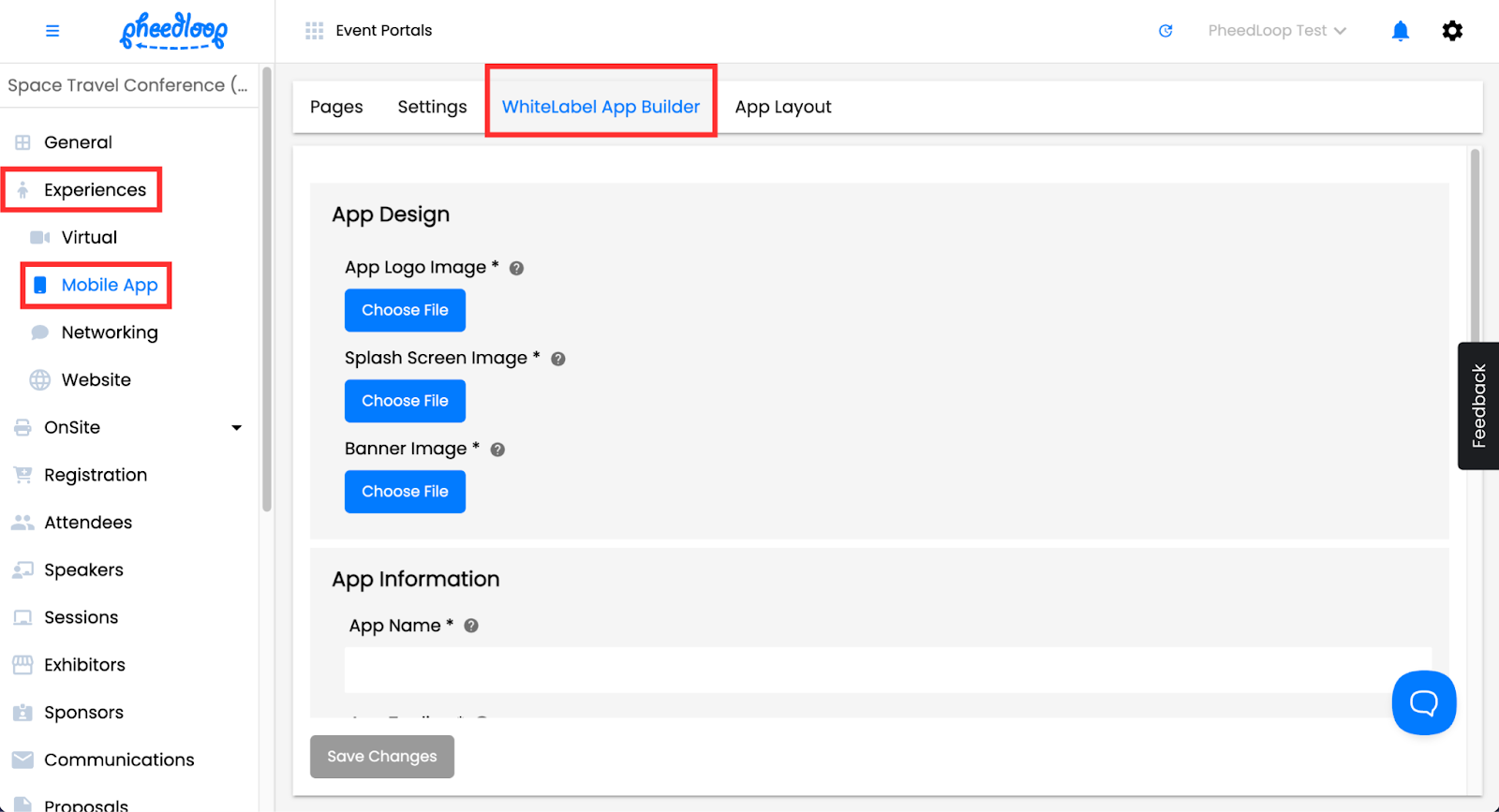
For Event White Label Apps:
- Navigate to your Event Dashboard
-
Go to Experiences > Mobile App > White Label App Builder
For Organization White Label Apps:
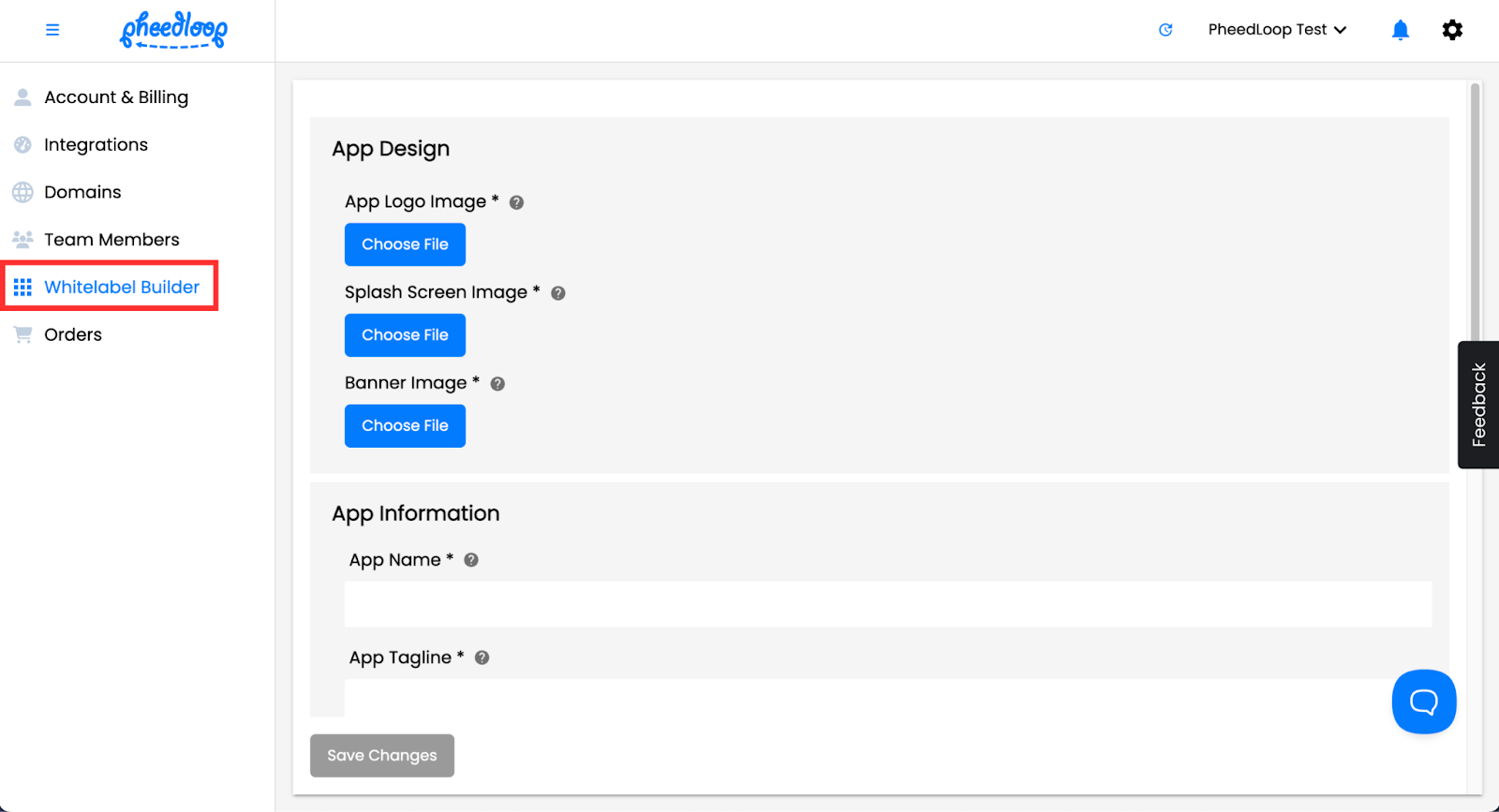
- Click the drop-down menu at the top right corner of your Dashboard
- Select Settings Show Image
- Navigate to Whitelabel Builder
-
The Whitelabel Builder option only appears after purchasing the Organization Whitelabel App Power-Up.
-
App Design Settings
|
|
App Logo Image | Splash Screen Image* | Banner Image |
| Purpose | The icon that represents your app in the Apple App Store and Google Play Store. | The branded screen that appears every time a user opens your app. | Promotional graphic visible in your app's Apple App Store and Google Play Store listing details. |
| Recommend Size | 512 x 512 pixels | 3000 x 3000 pixels | 1024 x 500 pixels |
| Accepted Formats | PNG or JPG | PNG or JPG | PNG or JPG |
*Critical Requirement for the Splash Screen Image: Ensure key content is centred within a 1000 x 1000 pixel area for optimal visibility across all devices

|

|
App Information Settings
|
|
App Name | App Tagline | App Description |
| Purpose | The name attendees will search for when downloading your app from the app stores. | A short, compelling description that serves as the preview text in app store listings. | The complete description of your event app that appears in the app store listing's "about" section. |
| Example | "TechCon 2026" or "Association Annual Meeting" | "Your go-to resource for all things TechCon 2026!" | "TechCon's on-site event experience app: everyone you need, all in one place. Access everything you need from registration details, schedules, venue maps, and more!" |
| Considerations | N/A | Keep concise for optimal display in app stores. |
Include key information about:
|
Required Permissions Settings
iOS Developer Account Name
- Enter the exact name of your Apple Developer account.
- This should match the organization name used when creating your Apple Developer account in Step 2.
Android Developer Account Name
- Enter the exact name of your Google Developer account.
- This should match the organization name used when creating your Google Play Console account in Step 1.
App Privacy Policy URL
- Enter the complete URL to your app's privacy policy webpage.
- Must link to a webpage (not a PDF file)
- Must be publicly accessible
- Must be a complete, valid URL (e.g., https://yourorganization.com/privacy)
- App rejection warning: If this URL links to a PDF or is inaccessible, Apple and Google will reject your app submission.
Step 4: Submit for Development
Once all your settings are configured and you're ready for PheedLoop to begin developing your white label app, complete these final confirmation steps.
Confirmation Settings
Date Expected: Enter the date when you need your app to be available in the Apple App Store and Google Play Store.
Important reminders:
- Minimum 4 weeks required from submission to availability
- This 4-week timeline begins when PheedLoop receives complete access and assets
Ready for Development
When you're finished with all settings and ready to submit, toggle on the "Ready for Development" checkbox. Checking this box locks your submission form. You will not be able to make changes after this point. Only select this when you are completely ready to proceed.
What Happens Next After Submission
- PheedLoop will receive notification of your submission.
- Our team will verify all required access and assets are in place and will reach out via email if anything further is needed. You can always reach out to support@pheedloop.com if you'd like a status update for your white label app.
- Development of your white label app will begin.
- You'll receive updates on progress and when your app is submitted to Apple and Google.
- Apple and Google will review our team's app submission.
-
Do Not Remove Simon Young from Attendees While the App is Under Review
Do not remove the attendee "Simon Young" from your event's Attendees tab. Removing this test account may result in rejection by Apple and/or Google during their review process.
-
Do Not Modify App While the App is Under Review
After submitting your white label app (checking "Ready for Development"), do not make changes to your event's pages or app layout. Any discrepancies between your submitted configuration and the actual event may result in app store rejection.
-
- After app store review (conducted by Apple and Google), your app will go live and will be available for download in the App Store and Google Play Store.