How can I set up a custom website URL or Email Domain?
Please note, use of this feature requires the Whitelabel Domain and/or Whitelabel Email Domain Organization Power-Up.
By default, event websites and automatic emails will display the PheedLoop name in the URL. This can be changed with a custom URL through a domain provider. Anytime an attendee accesses the event website or receives an automated email, the URL and/or email address will appear as long as the domain is registered.
Buying a Website or Email Domain from a Domain Provider
In order for custom domains to work, the event administrator will need to purchase a domain from a domain provider first. Administrators must have access to the domain provider to edit DNS records. This article will assume that this is set up and ready to use.
PheedLoop does not sell domains. Please consult with a third-party domain provider to make proper use of the Whitelabel Domain and Whitelabel Email Domain Power-Up. We recommend GoDaddy or Namecheap, but any provider will work.
Configuring the Website and Email Domain in PheedLoop
Please note, only one website domain and one email domain can be associated per PheedLoop account.
To Edit the Website Domain
-
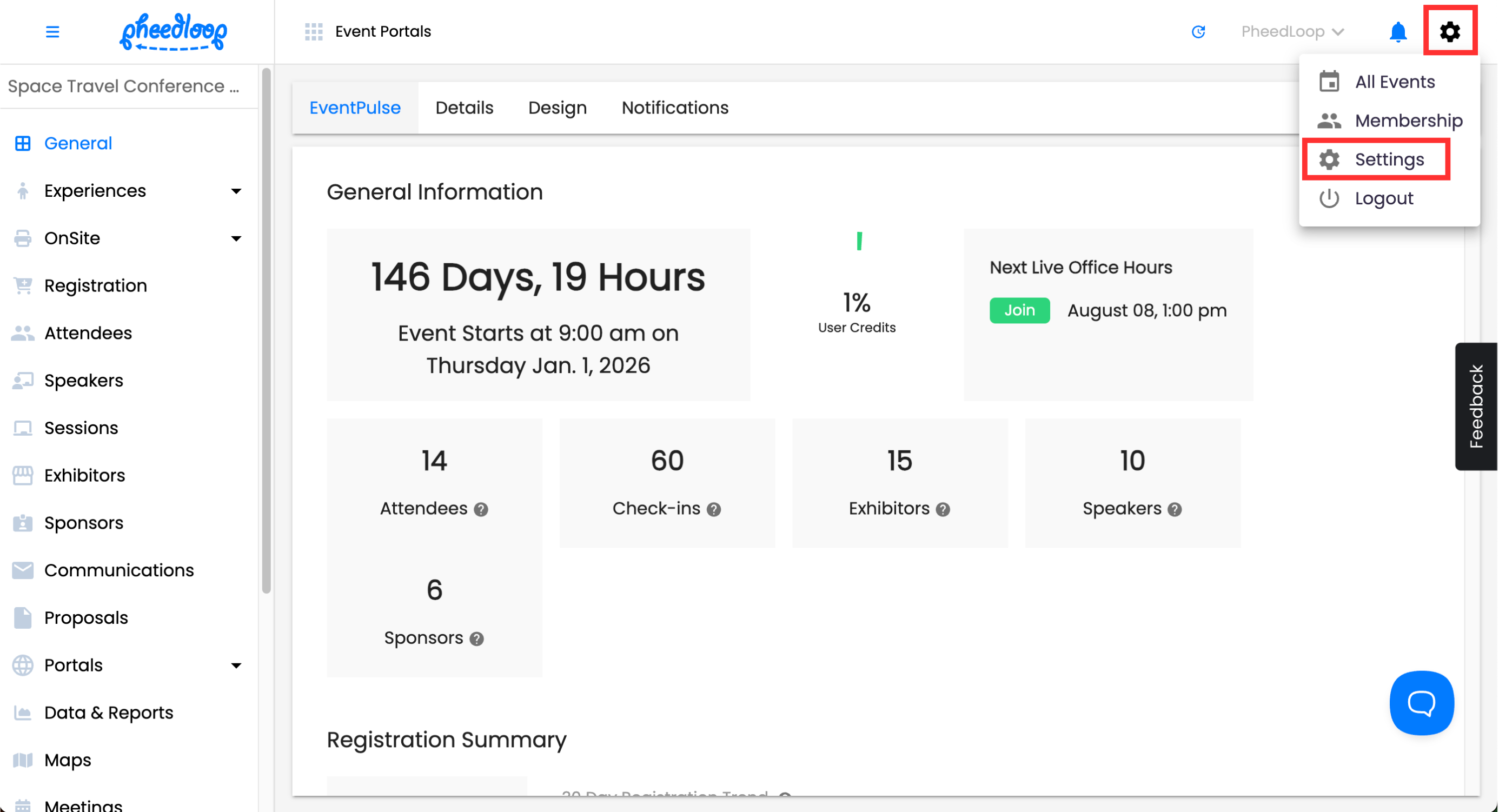
From the Event Dashboard, select your account email in the top right corner and navigate to Settings
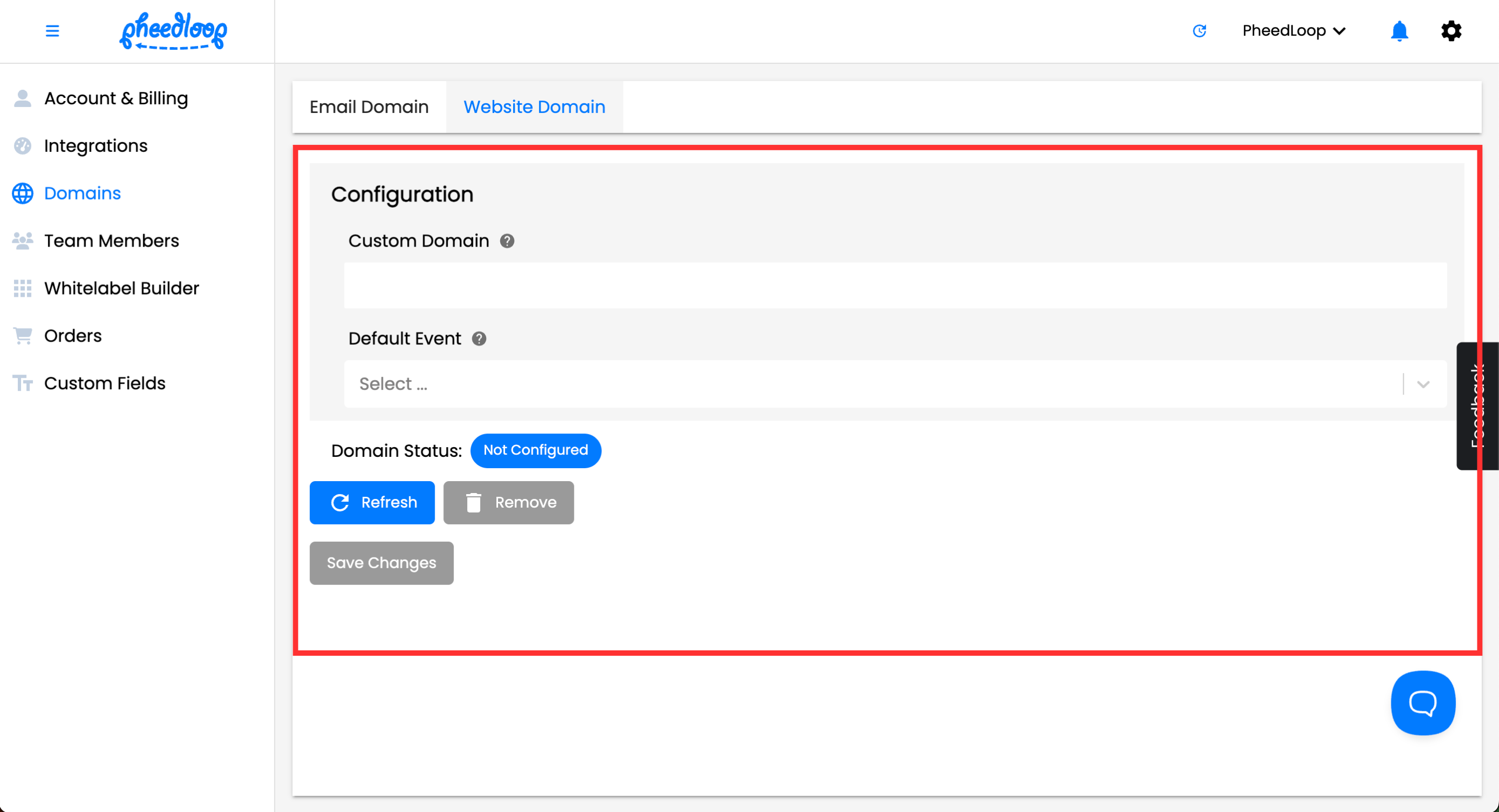
- Navigate to Domains > Website Domain
- Enter the domain URL under Custom Domain
- Under the Default Event field, select the event you wish for visitors to be redirected to whenever they visit the link
- Select Save Changes
-
Select Refresh to receive the CNAME records for DNS
To Edit the Email Domain
-
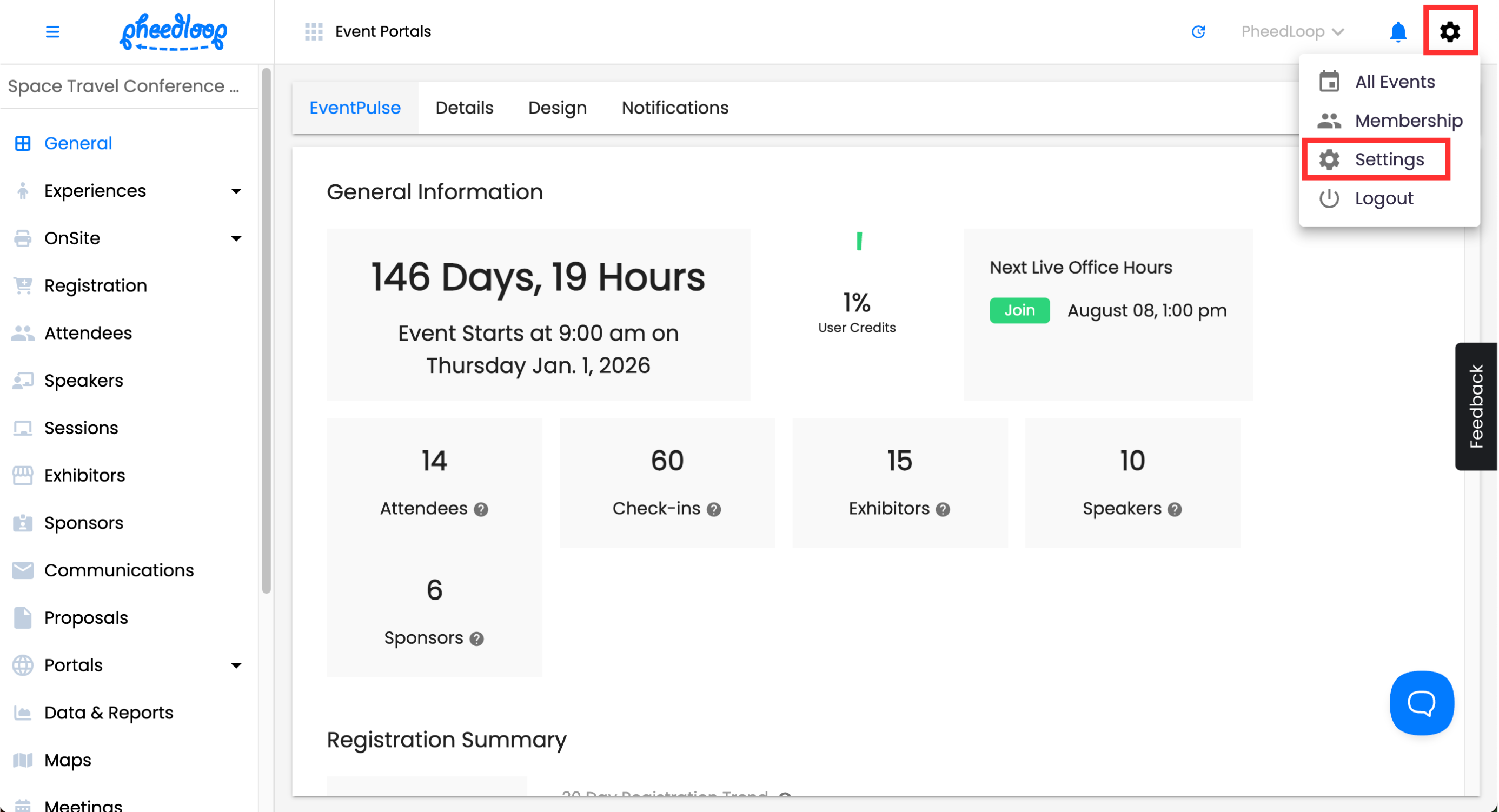
From the Event Dashboard, select your account email in the top right corner and navigate to Settings
- Navigate to Domains > Email Domain
- Enter the name for your email provider under the Custom Email Username field
- For example, if you put 'info' under this field, the provider will appear as 'info@[domain].com. If there is nothing under this field, it will default to 'no-reply' as the name.
- Enter the domain URL under Custom Domain
- Under the Sender Business Address field, enter your organization's business address in place of PheedLoop's default header
- Select Save Changes
-
Select Refresh to receive the CNAME records for DNS
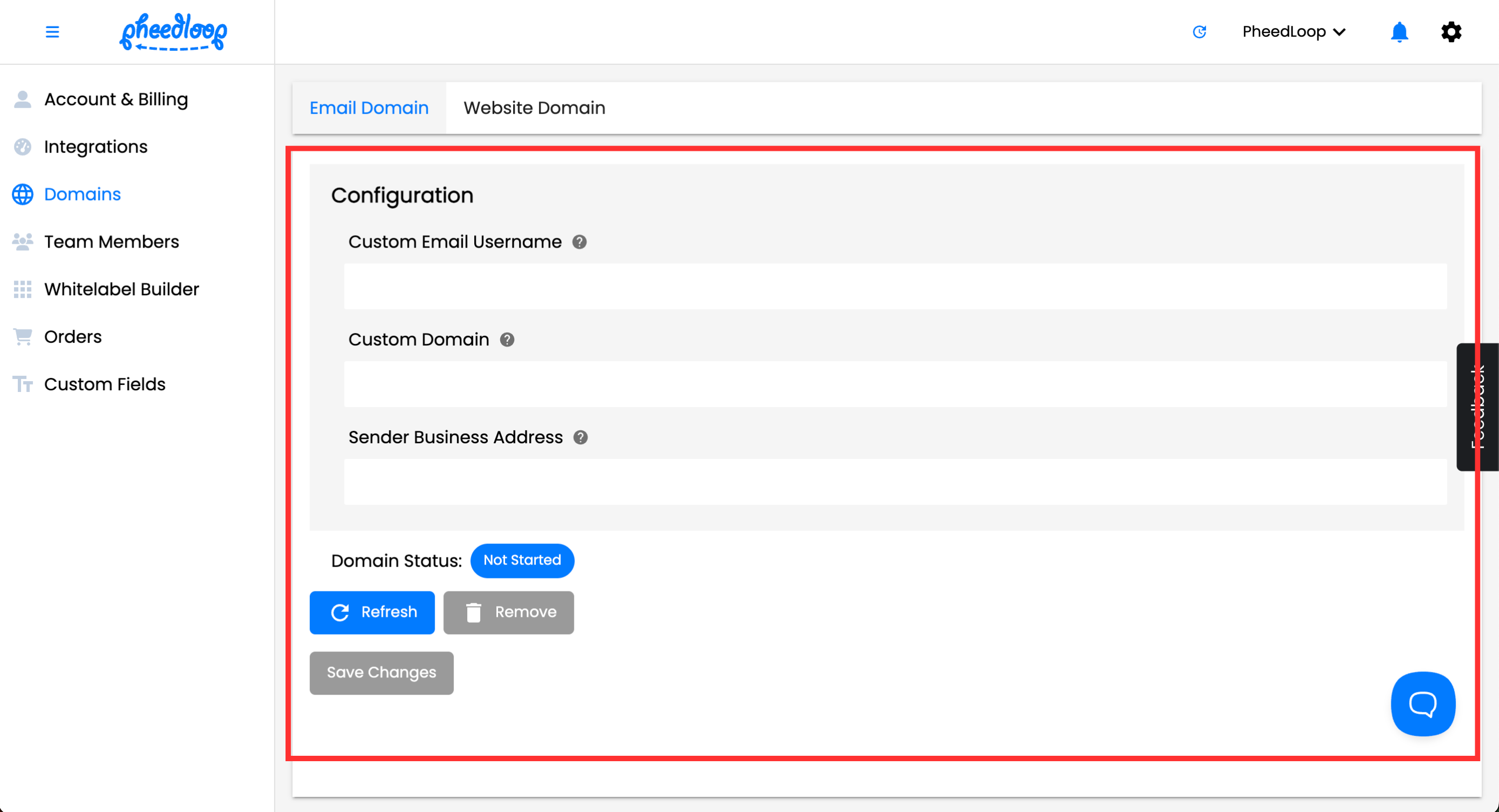
The domain should now update, and the Domain Status should read Configured. If no changes are apparent, please select the Refresh button.
Setting up DNS Records
Once the domain configuration is successful, a message will appear at the bottom of the page telling you to set the following DNS records on your domain. You will need to copy the CNAME into your domain provider.
- From the Domain Dashboard page, navigate to the DNS page
- Create a new record
- Under Type, select CNAME
- Under Name, copy and paste the Record name/host from PheedLoop’s event dashboard
- Under Value, copy and paste the Record value from PheedLoop’s event dashboard
Domain changes can take a few minutes to configure. Once done, the Domain Status should read Complete.
Testing your Email Domain
To confirm this works, we recommend sending out a test announcement. If everything is set, the email domain should now appear instead of the standard no-reply@pheedloop.com email. For instructions on how to send out an announcement, please review our Customizing Sending and Automating Announcements article.
Testing your Website Domain
To confirm your new domain works as intended, we recommend visiting the URL. Once entered, it should take you to the Event Website. In addition, custom domains can be used to reach the Sponsor Portal, Exhibitor Portal, and anywhere else that uses the site.pheedloop.com domain.
- From your Portal, copy the Path past your domain name
- Enter your Custom Domain in your address bar
- Hit Enter on your keyboard
Can I have Multiple Website Domains in PheedLoop?
No, each PheedLoop account is limited to a single custom domain. Organizations cannot use different domains for different events under the same account.
For example: If your connected domain is yourcompany.com, you cannot also use domainexample.com to host your event links.
How to Manage Multiple Events on One Website Domain
While you can only connect one root domain, PheedLoop makes it easy to host multiple events under that single web address using the Custom URL Extension.
While you can only connect one root domain, PheedLoop makes it easy to host multiple events under that single web address using Default Events and Custom URL Extensions.
1. Set Your Main "Default" Event
You can choose exactly which event visitors see when they type in your main web address (e.g., yourcompany.com). It is strongly recommended to set this to your current or most important upcoming event. To set this, go to Settings (top right) → Domains → Website Domain and choose your Default Event.

2. Create Custom Links for Additional Events
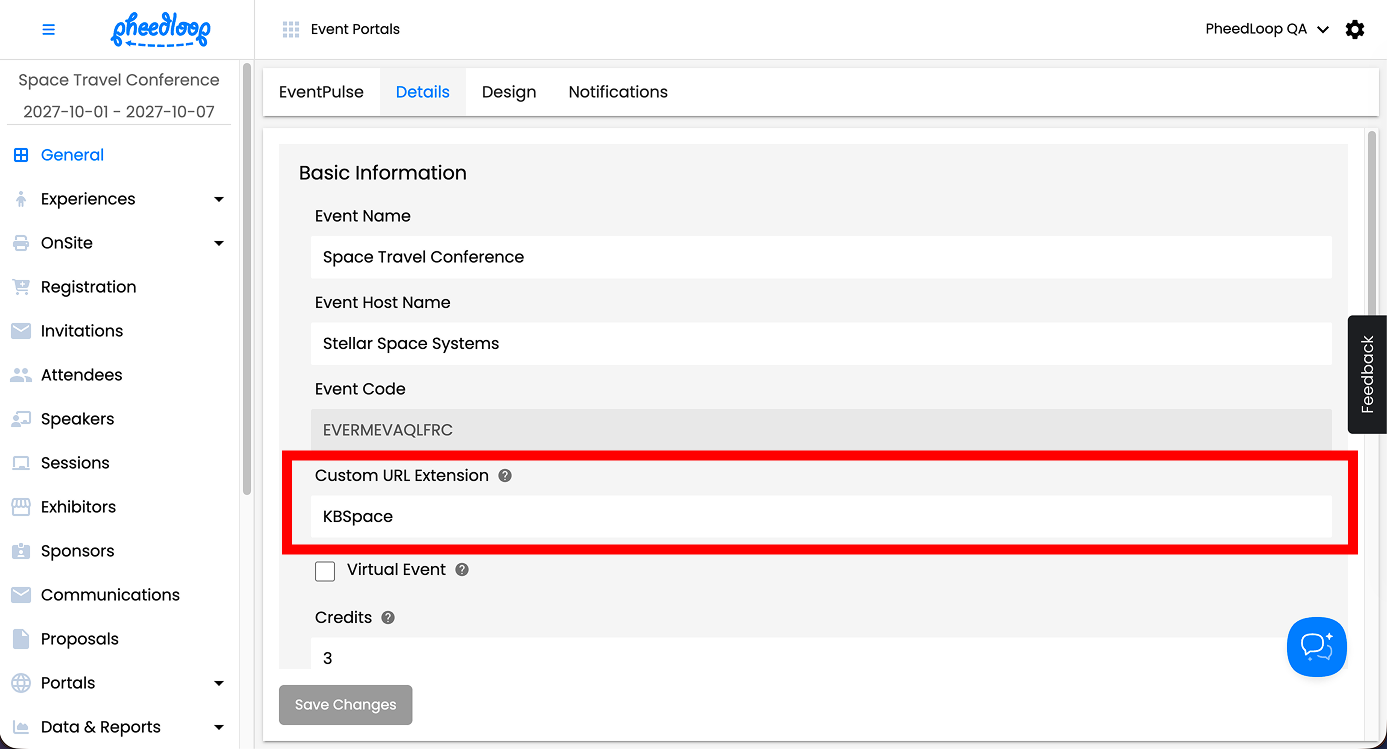
Every other event in your account will use your main domain, but with its own unique link ending. For example, if your default event is your main conference, an additional event can be assigned the extension "education," making its direct link yourcompany.com/event/education/home.
- From the Event Dashboard, navigate to General > Details
- Under the Custom URL Extension field, enter your unique link ending for the event
-
Select Save Changes