Why Aren't My Tickets Available During Registration?
PheedLoop has a number of settings that limit the visibility of tickets. These settings are intended to be used in specialized circumstances, so only select registrants will see them. If you cannot see your tickets, review the following settings to troubleshoot your issue.
Contents
Dates Not Active
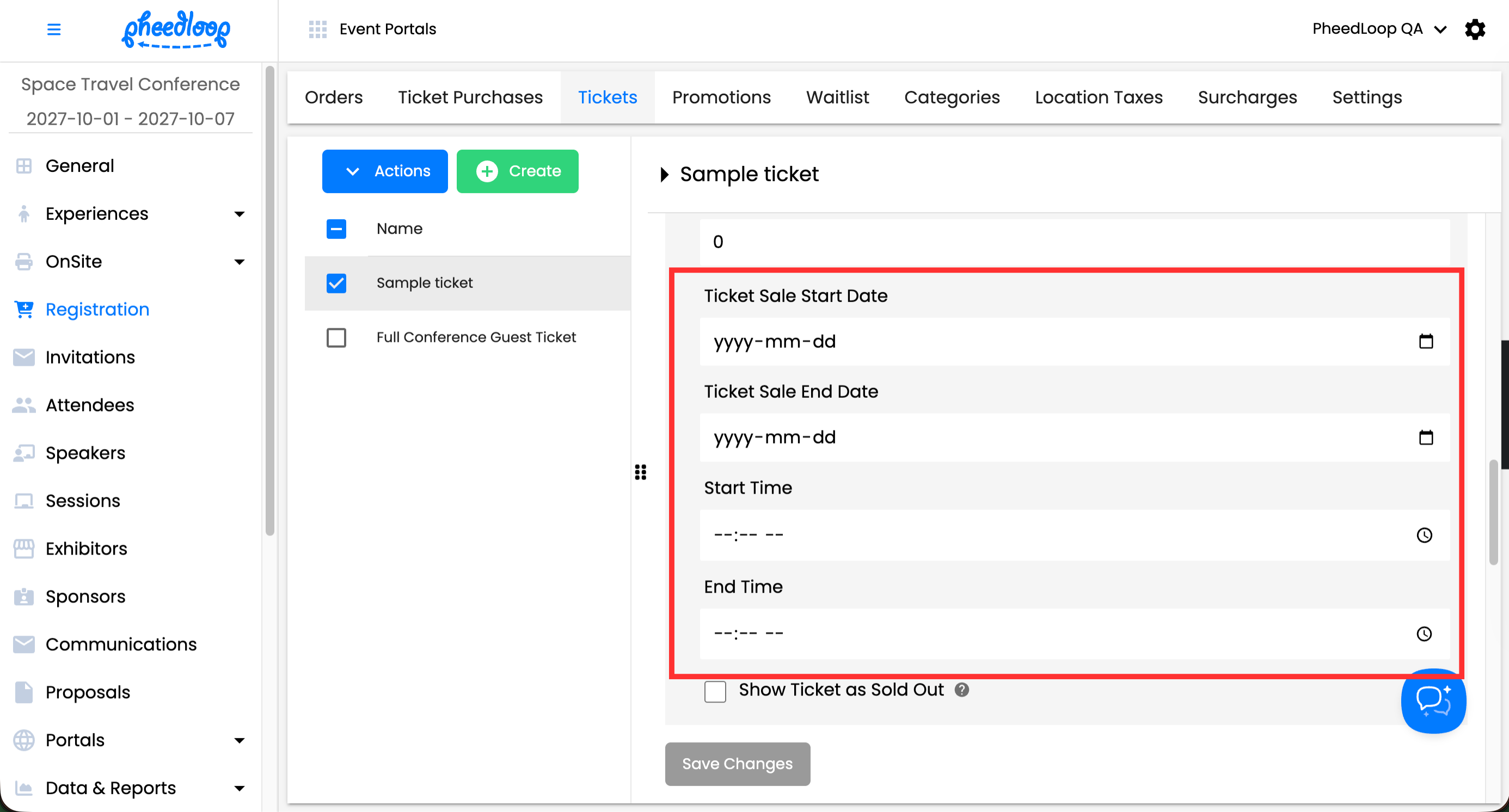
Tickets will not appear if the Start Date is in the future or the End Date has already passed. To keep tickets visible and available for sale immediately, leave both date fields blank.
To edit these settings, please follow these instructions:
- From the Event Dashboard, navigate to Registration > Tickets
- Select the Ticket you wish to use from the list
- Scroll down to Other Details
- Ensure the Ticket Sale Start Date and Ticket Sale End Date fields are blank
- Ensure the Start TIme and End Time fields are blank
-
Select Save Changes
Ticket Not Active
Tickets will not be visible if the Active Ticket checkbox is toggled off. Toggle this checkbox on to make your ticket visible.

Private or Protected Ticket
Ensure the Private Ticket or Protected Ticket checkboxes are toggled off.

Domain or Country Restrictions
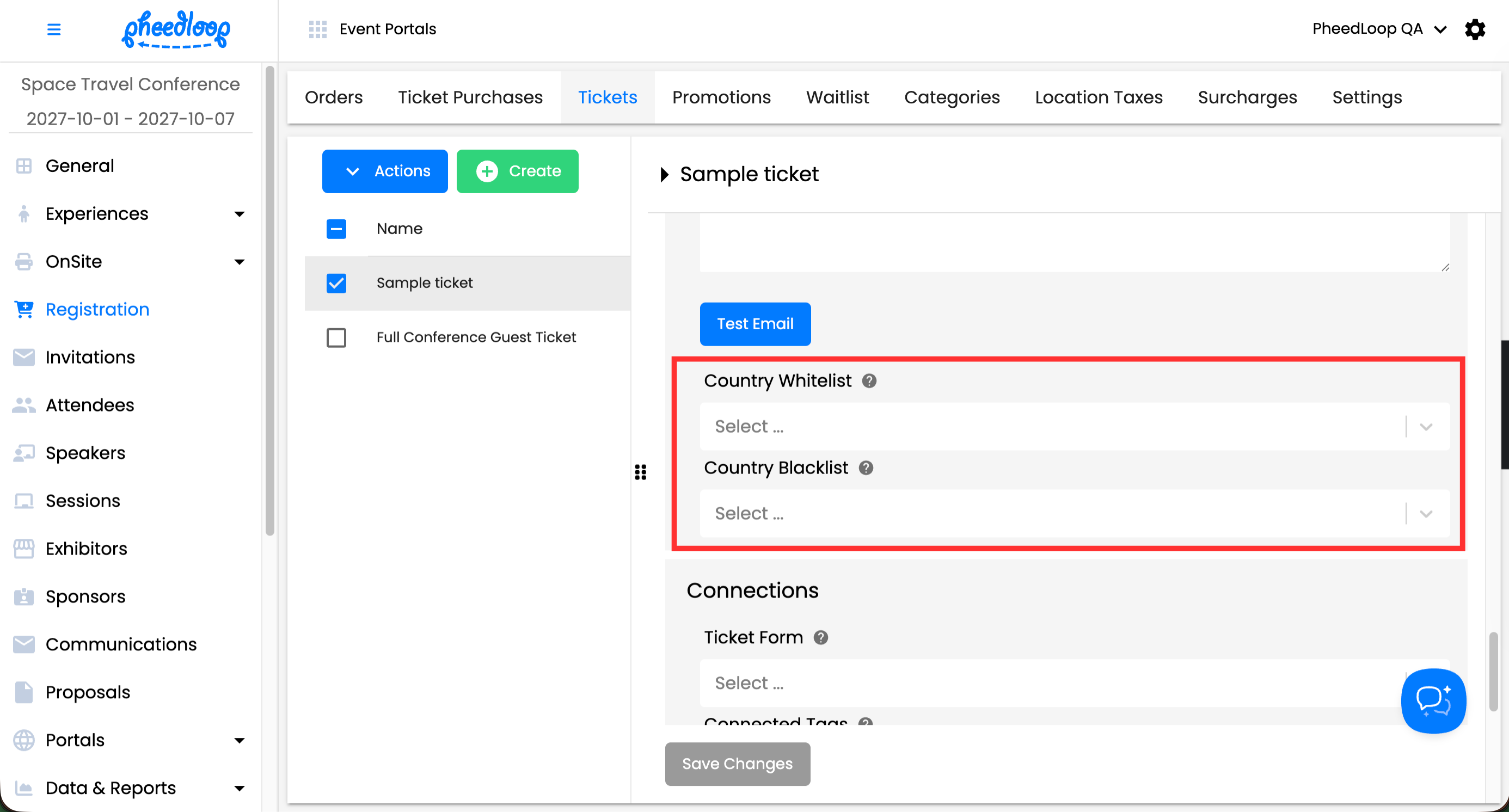
If a Country Whitelist or Blacklist is applied to a ticket, that ticket will remain hidden until the registrant enters a qualifying address. Ensure the country submitted during registration matches the whitelist criteria, or the ticket option will not appear.
If you would like to check or disable these fields, follow the steps below:
- From the Event Dashboard, navigate to Registration > Tickets
- Select the ticket you wish to adjust from the list
- Scroll down to Options
- Under the Country Whitelist field, leave this field blank
- Under the Country Blacklist field, leave this field blank
-
Select Save Changes
If you are using country restrictions, you must have Collect Address and Require Address enabled. Without these fields, the system will not be able to verify which registrants should see the tickets.
- From the Event Dashboard, navigate to Registration > Categories
- Select the category you wish to adjust from the list
- Scroll down to Details
- Toggle on the Collect Address field
- Toggle on the Require Address field (optional)
- Select Save Changes

If you are using the Collect Address Fields Override or Required Address Fields Override, ensure that Country is included, or else the ticket will not appear.
